
The E-Signing service supports SDO, PAdES and ASiC signature formats to maintain non-repudiation and integrity control of the signed data.
The SDO (Signed Data Object), PAdES (PDF Advanced Electronic Signatures) and ASiC (Associated Signature Container) document format is described on this page.
1. SDO
A digitally signed document is often represented in formats that are challenging to visualize for the customer. Digitally signed documents also require a compilation of data to be able to prove in a future conflict that a specific person actually signed this specific document at a proven time in the past.
The SEID SDO is a XML based data package designed to act as a self-contained validation of one or more digital signatures on one or more documents. The reason for this format is to be able to confirm non-repudiation and integrity of the signed document independent of time. Thus the result of a digital signing process can be packaged into a SEID SDO format to simplify validation, traceability and visualization of the signed document.
The SEID SDO is based upon ETSI TS 101 733 (CAdES) and ETSI 101 903 (XAdES). The SEID SDO format is described here: Kva er SEID-prosjektet (in Norwegian only)
A comparable format is PAdES which uses Acrobat reader to visualize the digital signature embedded in a .pdf document. The IN Groupe E-Signing service produces both a SDO and a PAdES file (if requested) as the result of a digital signing process.
The format is structured as an SDOlist with one or more SDOs. Each SDO consist of:
-
One document
-
One or more signatures
-
One seal
-
Signing time or validation time

A seal is an automatic signature over the document and the signatures to maintain package integrity. The sealing is performed by use of a signing certificate that is customer specified. Example of supported certificate types are Norwegian BankID organisation certificate and Nets AS Intermediate CA (issued by Nets AS Root CA). For details on supported sealing certificates, use the Contact us form to contact support. Default will be the primary organisation certificate issued to the customer. There is no dedicated fee for use of alternative sealing certificate, but most certificates have a cost for signing and thus the use of sealing certificate may influence the total cost. Note that some SDO receivers may have restrictions on which certificate issuer to use for SDO sealing.
The E-Signing service can also make partial SDOs available. A Partial SDO is a SDO including only one document and one signer. A partial SDO is generated after each sign process in a sign order. The partial SDO is available using the GetDocuments message.
IN Groupe offers a SDO validator to view and validate SDOs. Read more about the E-Signing validator.
IN Groupe plans to continue support SDOs.
2. PAdES
PAdES is a standard for signed documents, and the standard is maintained by ETSI (ETSI TS 319 142). Information about electronic signature standards can be found here: PAdES (PDF Advanced Electronic Signature) Baseline Profile
As a customer of the E-Signing service you may choose to get the signed documents in the PAdES format. E-Signing supports two different PAdES versions:
To retrieve the signed documents in accordance with PAdES standard there are two ways to do so in E-Signing. Firstly, you may request the document using the GetPAdES XML message, or secondly request the generation of a signed document based on a SDO using the GeneratePAdES XML message. The retrieval of the document from E-Signing with the GetPAdES message is available for 90 days after the sign order has been completed.
PAdES - generated based on SDO
E-Signing uses the PAdES B-T signature level. PAdES signatures contain a signature timestamp from a timestamp authority (TSA).
A PDF signed document from E-Signing may only be generated from a PDF file (and not from a text or XML document signed through E-Signing). When generating the PDF signed document, the E-Signing service is appending the following to the original document:
-
A document reference on each side of the document
-
A last page with the document reference and information about the signer(s) of this particular document.
-
An extract of the signature from each signer (as an “attachment” in the document)
The document is certified using a certificate issued to IN Groupe Branch Norway from Buypass and timestamped using the TSA service from Firmapro (https://www.firmapro.com/ ).
The last page added by IN Groupe may look like this:

The last page is available in several languages. See language element description in GetPAdES request for an overview. English is default language if nothing is specified.
The default format for signed documents through E-Signing is still SDO, and this document should always be used in case of conflicts. The signed PDF document (PAdES) only includes extracts of the original signatures and not the entire signature.
Note: The use of this function may have an extra cost. If it is not already priced in your agreement, please contact trustservices@ingroupe.com to retrieve the price list and an offer.
It is also possible to display custom properties values belonging to a signer on the PAdES last page. Below is an example of a last page with some custom properties values.

Norwegian BankID PAdES
IN Groupe offers PAdES as an output format when signing PDF documents with Norwegian BankID. Please note that the PAdES output format is exclusively supported for Norwegian BankID workflows. A single document may be signed by multiple signers. Each cryptographic BankID signature is applied directly to the PDF document and can be visualized with an IN Groupe-designed visual signature stamp containing the signer's name and the signature date. This stamp is linked to the actual signer’s signature.
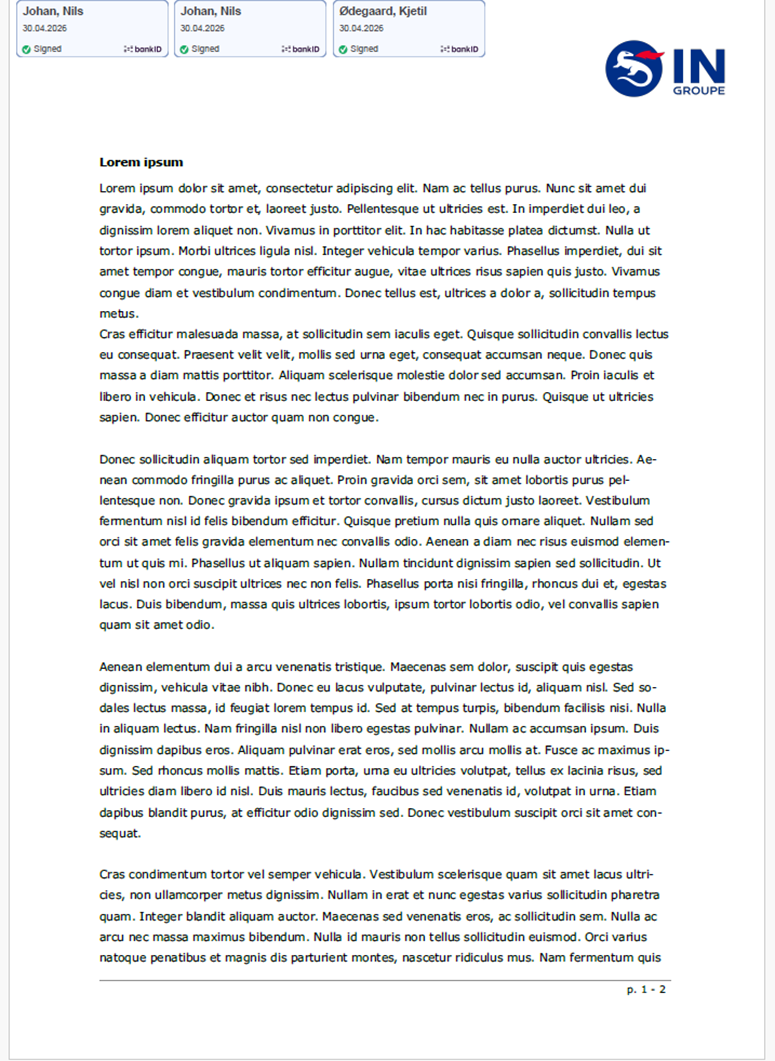
Note: It will not be possible to get a SDO when BankID PAdES is used. In addition, the last page that is added when generating a PAdES from a SDO will not be added to the signed document.
Visual Signature Stamp Configuration (PAdES)
This section outlines how to configure, position, and customize automatic visual signature stamps on your PDF documents.
By utilizing visual stamps, your processed PDFs will feature high-trust, visible cryptographic validation badges—complete with signer names, verification date, and security branding (such as BankID)—embedded natively within the document layout.
Enable the feature
There are two flexible ways to enable visual signature stamps on your PDF documents. You can either automate them globally across your entire account via a quick support request, or trigger them dynamically on a per-request basis using your API payload.
Account-Level Automation (Via Support Request)
If you want every signed document to automatically receive a visual signature badge without altering your current API payloads, you can request this behaviour globally.
-
Setup: Contact our support team to turn this feature on for your merchant profile.
-
Behaviour: Once enabled by support, our visual signature engine becomes active for all incoming transactions. If your application submits a standard document payload without any layout specifications, the system applies the stamp using pre-configured system defaults.
Transaction-Level Enablement (Via API Payload)
If you prefer to dynamically enable the visual stamp on a document-by-document basis or if you want to override your global account settings for a specific order, you can pass the visualStampPresentation JSON configuration.
-
Behavior: Explicitly passing this block triggers the visual signature engine for that specific transaction, regardless of your global account setup.
-
Payload Flexibility: You only need to provide the parameters you actually wish to customize. Any missing parameters inside the JSON block will automatically fall back to our system defaults to ensure a successful, error-free render.
-
All parameters within this block are optional. If omitted, the default values below are applied:
|
Parameter |
Type |
Default Value |
Description |
|
page |
Integer |
1 |
Target page index for visual placement |
|
width |
Float |
120 |
The target horizontal width allocated for an individual stamp card. |
|
height |
Float |
45 |
The target vertical height allocated for an individual stamp card. |
|
left |
Float |
0 |
Margins/padding from the left edge of the page canvas. |
|
right |
Float |
0 |
Margins/padding from the right edge of the page canvas. |
|
top |
Float |
0 |
Margins/padding from the top edge of the page canvas. |
|
bottom |
Float |
0 |
Margins/padding from the bottom edge of the page canvas. |
Understanding the Canvas & Usable Area
The core placement mechanism relies on defining a usable bounding area calculated by subtracting your configured margins from the total width and height of the PDF page. The image below demonstrates a sample configuration where the merchant has restricted the signature placement canvas using the following parameter values:
-
width: 120
-
height: 45
-
top: 10
-
bottom: 10
-
left: 50
-
right: 50
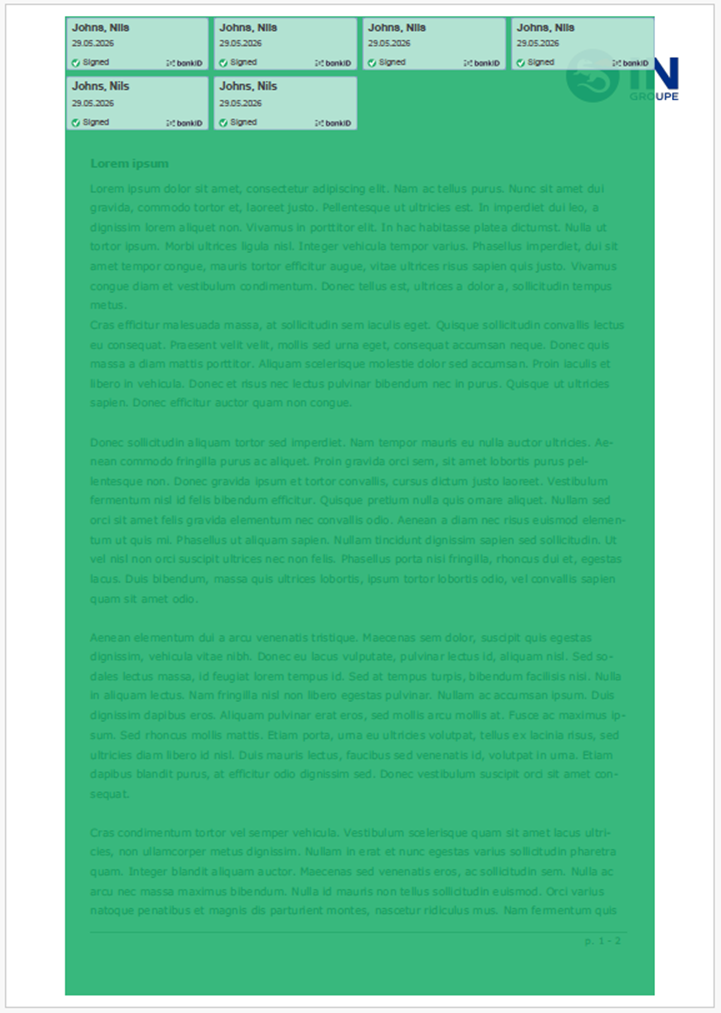
Note on Visual Shading: The green highlighted canvas shown in the reference image above is for visual representation only within this documentation to help explain the boundaries. No green color or background shading will ever be visible on your actual signed PDF workflows.
The Flow Engine
To prevent overlapping signatures and maximize real estate, our layout engine utilizes a fluid layout style:
-
Flush Alignments: The first seal placed in any given row locks precisely to your defined left margin offset with zero leading gap additions.
-
Horizontal Priority: Multiple signatures will line up side-by-side from left to right inside the green boundaries. Inter-element spacing gaps are applied only between elements.
-
Automatic Wrapping: If a stamp card's width exceeds the right-hand boundary margin, the layout engine performs a "carriage return," automatically dropping down to begin a fresh line.
-
Vertical Space Protection Constraint: In scenarios where the merchant-defined vertical area is highly restrictive (e.g., a slim banner), the system prioritized rendering over failure. It forces the first row of elements to render horizontally across the canvas even if the vertical bounds are technically exceeded, shifting subsequent stamps continuously to the right instead of overlapping them directly on top of each other.
API Integration Payloads
To ensure seamless transport and cross-compatibility, the visualStampPresentation JSON object must always be Base64 encoded before transmission. This configuration is fully supported across both our modern and legacy E-Signing APIs.
API Integration Paths
Depending on which API your system interfaces with, assign your Base64-encoded string to the designated field below:
Modern REST API (ESOS)
-
-
Interface Type: Our newer, REST API built on the OpenAPI specification
-
Target Parameter: Pass the Base64 string directly into the b64rule field located inside the Document POST request body.
-
Documentation: Refer to the ESOS API Reference Link for more information on the REST request structure.
-
Example Request Format:
-
ESOS Document Request
{
    "requestId": "12345678",
    "documents": [
        {
            ...
            "content": {
                "contentType": "APPLICATION_PDF",
                ...
                "b64rule": "Base64 encoded JSON"
            }
        }
    ]
}
Legacy Interface (TSOS)
-
-
Interface Type: Our legacy interface built on top of XMLDSIG over HTTP.
-
Target Parameter: Pass the Base64 string inside the XML node path: DocType / PDF / FormInstructions.
-
Documentation: Refer to the TSOS Integration Link for detailed schema mappings.
-
Example Request Format:
-
TSOS InsertOrder Request
<InsertOrder>
    ...
    <Documents>
        <Document>
            ...
            <DocType>
                <PDF>
                    <FormInstructions>Base64 encoded JSON</FormInstructions>
                    ...
                  </PDF>
            </DocType>
               ...
            </Document>
    </Documents>
       ...
</InsertOrder>
Decoded JSON Payload Examples
The examples below illustrate the raw, unencoded JSON structures.
Important: Do not send raw JSON. You must convert these JSON objects into a Base64 string before mapping them to b64rule or FormInstructions.
Fully Customized Request Envelope
{
  "visualStampPresentation": {
    "page": 2,
    "width": 150,
    "height": 50,
    "left": 50,
    "right": 20,
    "top": 40,
    "bottom": 40
  }
}
-
Engine Behavior: In this case, the engine will position custom 150x50 pixel badges on Page 2 using your custom 50/20/40/40 padding constraints.
Partial Request Envelope (Defaults Fallback)
{
  "visualStampPresentation": {
    "left": 30,
    "top": 30
  }
}
-
Engine Behavior: The engine explicitly locks down your custom 30-unit left and top offsets. Because the remaining layout parameters were omitted from the payload, the engine safely initializes them to their standard system defaults:
-
Width & Height: Defaults to 120 and 45.
-
Right & Bottom Margins: Defaults to 0.
-
Target Page: Defaults to Page 1.
-
Built-In Page Boundary
To minimize errors during processing loops, the platform features automatic page-number normalization:
-
Under-Bounds Correction: If your input payload requests a page index of 0 or any negative integer (< 0), the engine overrides the value and dynamically targets Page 1.
-
Over-Bounds Correction: If your input payload requests a page index numbers larger than the total pages contained within the actual target file (e.g., requesting Page 15 on a 3-page document), the engine automatically auto-corrects the assignment to target the final page of that PDF.
3. ASiC
The E-Signing ASiC (Associated Signature Containers) file is a signature format for handling one or more files with advanced electronic signatures and time assertions.
The ASiC file format supports a variety of electronic signature types and signature verification levels.
ETSI (European Telecommunications Standards Institute) has defined ASiC to be flexible and portable.
Feature comparison
|
Feature |
PAdES |
XAdES |
SDO* |
ASiC |
Remarks |
|
File Format |
PDF, Binary |
XML, Text |
XML, Text |
ZIP, Binary |
|
|
Exposure |
Universal |
Universal |
Norway |
Universal |
|
|
Serial signing |
✅ |
✅ |
✅ |
✅ |
Each signature is collected in sequence. SDO - each signer signs the original document (all sign the exact same document) PAdES - every subsequent signer signs the document that has been signed by a previous signer (all sign slightly different copies) |
|
Parallel signing |
❌ |
❌ |
✅ |
✅ |
Signature collection can be performed at the same time (or during the same phase) |
|
Serial + Parallel signing |
❌ |
❌ |
✅ |
✅ |
The sequence of signers allows for both serial (i.e. predefined order) and parallel (i.e. no fixed order) |
|
Merchant signing |
❌ |
✅ |
✅ |
✅ |
Business or organisation signature |
|
Multiple documents per file |
❌ |
❌ |
❌ |
✅ |
ASiC can contain more than 1 signed document in the same file |
|
Cloud signing compatible |
✅ |
✅ |
⚠️Limited |
✅ |
|
|
LTV support |
✅ |
✅ |
⚠️Limited |
✅ |
|
|
Document non-disclosure |
❌ |
✅ |
❌ |
✅ |
Whether documents can be signed without access to documents (e.g. documents with sensitive info that cannot be distributed to the signing service) |
|
Supports E-Signing ABS* |
❌ |
❌ |
❌ |
✅ |
Whether the identity of the signer is preserved. In PAdES and SDO, the signer identity is that of the signing server. |
|
Supported document types |
|
XML, Text |
PDF, text, XML |
Any |
|
|
File format |
PDF, Binary |
XML, Text |
XML, Text |
ZIP, Binary |
|
ASiC file layout
ASiC (Associated Signature Container) files use the ZIP format, making them both machine and human-readable. Because they are standard ZIP archives, their contents can be easily inspected—just like browsing files on a USB drive or in a system folder.
E-signing ASiC files also include structured metadata to support signature validation and automation. Alongside signed documents, they may include user input, logs, case files, order information, and tracking data, allowing internal workflows to process everything in a single package without complex decoding or data transformation.
|