
Stø is introducing a new BankID signing service, phasing out the current signing service based on the old ‘BankID Server’ technology. The solution supports signing multiple documents simultaneously and meets the strictest EU requirements for digital signing, qualified signatures. Please note that Stø has extended the deadline from December 31, 2025 to April 1, 2026. For more details refer here Important Notice: Action Required for Upcoming Changes to BankID Norway by April 1, 2026
We would like to inform you of the following key changes that will take effect as part of our service updates:
-
iframe Support Discontinued – From this date, iframe-based integrations will no longer be supported. Customers currently using iframe must update their integrations.
-
SSN Handling via Certificate – Going forward, the Social Security Number (SSN) must be retrieved directly from the Certificate-SSN. The Norwegian National Identity Number (NNIN) will be included in the public certificate as a custom extension, using the following Object Identifier (OID): 2.16.578.1.61.2.4
-
Change in Revocation Data Format – The current use of UserCertificateAndRevocationData/RevocationValues/XAdES:OCSPValues will be replaced by: UserCertificateAndRevocationData/RevocationValues/XAdES:CRLValues. This change affects how certificate revocation information is processed and validated.
-
Introduction of Qualified Electronic Signatures (QES) - Signing will be upgraded to QES, offering enhanced legal validity and security in compliance with EU eIDAS regulations
Update on BankID (NO) CSC
Enable BankID in your services
Enable BankID in your services
To get you started with BankID signing through E-Signing, IN Groupe will need a merchant configuration setting information from you. The configuration settings are supplied in the setup dialogue with support.
More information about BankID:
SSN Handling via Certificate
The social security number (SSN) is included in the signed document SDO or native PAdES if the SSN was defined in the SignerID element in the sign order. The SignerID needs to be added when inserting the sign order or by using the ModifySigner call.
The SSN will also be included if the IncludeSSN element has been set to true in the sign order.
Social Security Number (SSN) must be retrieved directly from the Certificate. The Norwegian National Identity Number (NNIN) will be included in the public certificate as a custom extension, using the following Object Identifier (OID): 2.16.578.1.61.2.4
For SDOs:
GetSDODetails call with the ReturnSSN element can be used to retrieve the signer's SSN. It will return SSN if either SignerID is set with SSN or IncludeSSN is set in SignOrder.
Note: If you are not allowed to handle SSN or you will limit the usage of SSN, each BankID user has a unique ID called PID (personal ID). This is included in the BankID user certificate.
How to find the SSN?
GetSignature
The SSN of a signer can be fetched from E-Signing using the GetSignature call. This requires that the SignerID was set in the sign order. The SSN is returned in the SignerID / IDValue element of the response.
GetSDODetails:
Use the GetSDODetails to deduct the content of the SDO and return the SSN. Set the ReturnSSN element in the request to true, and the SSN will be extracted from the SDO (Signer Certificate extension OID 2.16.578.1.61.2.4)
User experience
Embedded view (sign url with “ref”)
It is not supported inside the iframe. It is allowed in popup window or redirect in full page window.
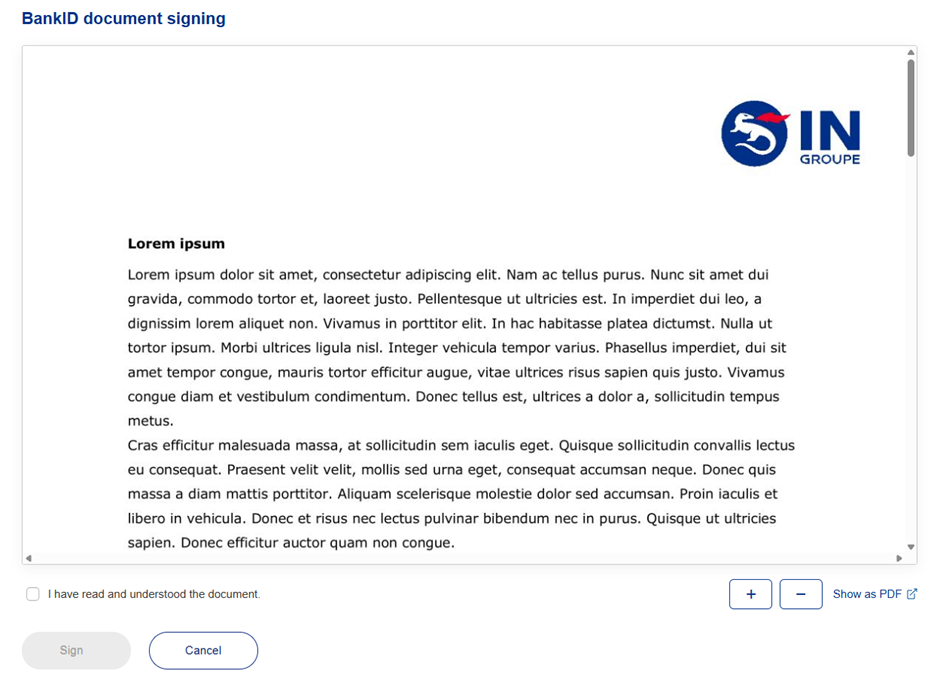
Style of the embedded page has been improved so Signer can see the updated page.
Only page style (css) is updated, not any html element structure so it should be same user experience for the customers who use their custom style url.
The visual difference can be seen below. First one is the improved style and second one is the older style.


Standalone view (sign url with “sref” )
Step 1 (read document)
It shows IN Groupe branding with customers logo. Standalone view does not allow to be customised.

BankID client
Step 2 (BankID client start)
Note: SSN is not automatically detected. Signer must insert SSN number. This is a known to BankID Norway and they will implement this in future.

Step 3 (enter OTP):
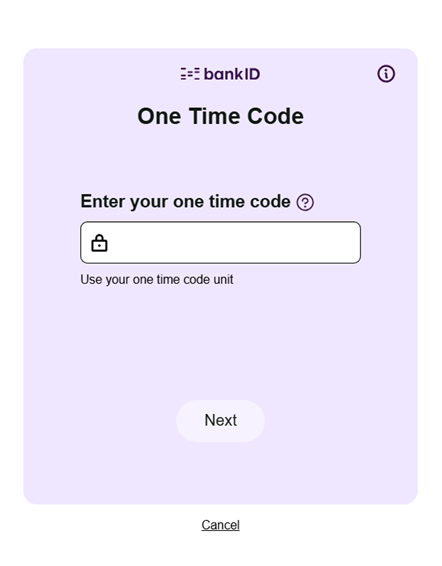
Step 4 (enter password):


BankID logo
If needed, the BankID logo can be downloaded from Press (bankid.no)
Document types and sizes
The following document formats are supported using BankID:
-
PDF
-
Text
-
XML
The general document size limit in E-Signing is currently 10+ MB base64 encoded document. An encoded document adds approximately 30 % extra to a non-encoded document. Read more about BankID's recommendation in their documentation.
PDF document
It is recommended from BankID to use PDF/A-2b format when creating the PDF documents. Also, to provide proper support for Universal Accessibility, the document should conform to PDF/UA specification in addition to PDF/A-2b.
XML document
BankID (NO) mandates that if an end user signs XML data, then an XSL must be provided as well. The XSL is used to transform the XML to presentable HTML. So, the customer must provide two documents when they want an XML-document to be signed.
Copy to clipboard
-
.xml
CODE
<Document>
<LocalDocumentReference>doc1</LocalDocumentReference>
<Presentation>
<Title>tittel åæøÅÆØ</Title>
<Description>Dette er beskrivelseåæøÅÆØ</Description>
</Presentation>
<DocType>
<XML>
<B64XMLBytes>PD94bWwgdmVyc2lvbj0iMS4wIiBlbmNvZGluZz0iVVRGLTgiPz4KPEVTaWduVGzPg==</B64XMLBytes>
<B64XSLBytes>PD94bWwgdmVyc2lv465s4d564sfbj0iMS4wIiBlbmNvZGluZz0iVVRGLTgiPz4KPasd4K</B64XSLBytes>
</XML>
</DocType>
</Document>
The BankIDXML structure is the document that the end user signs. When E-Signing sends this BankIDXML structure to the BankID client, it recognizes this structure and performs an XML transformation. The result of the XML transformation is a HTML which again is presented to the end user. The XML and XSL document bytes provided by the customer must be in ISO-8859-1. So, when providing the XML and XSL bytes, get the ISO-8859-1 (ISO-LATIN-1) bytes. The ISO-8859-1 bytes must be Base64-encoded.
BankID PAdES
BankID offers PAdES as an output format when signing PDF documents and this is supported in the E-Signing service. The document may be signed by several signers. Each signature will be applied directly to the PDF document, and it is not visualised with a BankID seal and must be opened in Adobe and open signatures to see it. Here is how a document with two signatures looks like:

As each signer's signature has embedded timestamp applied by IN Groupe. In the example below, you can see the signature details of two signers with each signature has the embedded timestamp securely recorded within the document

Signatures at a PAdES document must be applied in sequence, and two signers can't sign the document at the exact same time. The first signer will sign the original PDF document, while the second signer will sign the PDF document including the first signer's signature. The third signer will sign the PDF document including both the first and second signers' signatures and so on. If you inspect the signatures in for example Adobe Acrobat, you will see that the version of the document for the first signer is without any signatures, while the version for the second signer will include the first signer's signature.
Note: It will not be possible to get a SDO when BankID PAdES is used. In addition, the last page that is added when generating a PAdES from a SDO will not be added to the signed document.
Implementation
To use the functionality, the element OutputFormat in the sign order must be set to PAdES. This element is set as part of the ExecutionDetails. Below is an example of the ExecutionDetails element with two signers.
Copy to clipboard
-
.xml
CODE:
<ExecutionDetails>
<OrderDeadline>2026-02-11T08:47:50+00:00</OrderDeadline>
<GenerateOneTimeURLs>false</GenerateOneTimeURLs>
<Steps>
<Step>
<StepNumber>1</StepNumber>
<SigningProcess>
<LocalDocumentReference>doc1</LocalDocumentReference>
<LocalSignerReference>user1</LocalSignerReference>
</SigningProcess>
<SigningProcess>
<LocalDocumentReference>doc1</LocalDocumentReference>
<LocalSignerReference>user2</LocalSignerReference>
</SigningProcess>
</Step>
</Steps>
<OutputFormat>PAdES</OutputFormat>
</ExecutionDetails>
In the example above, it is defined that the two signers may sign at the same time. However, it is not possible for two signers to sign at the same time. The signURL for the user1 and user2 will be ready at the same time. If both signers try to access the document simultaneous, the second signer will be shown an error message and asked to try again in a short while.
The PAdES may be retrieved when all signers have signed using the GetPAdES message.
Multi-document signing
Embedded View

Standalone view
